I Built a macOS App to Turn My Notion Notes into My Desktop Wallpaper
I’ve been trying to level up my workflow by switching to Vim motions and Neovim. If you’ve ever tried to learn Vim, you know the drill: the learning curve is steep, the shortcuts are endless, and your brain just refuses to retain half of them.
So like any reasonable developer, I started building a cheat sheet in Notion. Every time I discovered a useful shortcut or motion, I’d add it to my page. Problem solved, right?
Not quite.
The Problem with Storing Shortcuts in Notion
Having a well-organized Notion page with all my Vim shortcuts sounds great in theory. In practice, it meant I was constantly Cmd+Tab-ing out of my terminal to look up a shortcut in Notion, then switching back to try it. Every. Single. Time.
It breaks your flow completely. You’re in the middle of editing a file, you need to yank a block of text but can’t remember the exact combo, so you switch to Notion, scroll through your page, find it, switch back, and by then you’ve lost your train of thought.
I needed these shortcuts to be always visible, without leaving my workspace.
The Idea: What If My Wallpaper Was My Cheat Sheet?
I spend most of my day staring at my screen. My desktop wallpaper is always there, behind every window. What if I could just glance at it whenever I needed a shortcut?
The idea was simple: sync a Notion page directly to my macOS wallpaper. That way, my Vim cheat sheet would literally be my desktop background. No switching apps, no breaking focus.
So I built it.
Introducing Notion Wallpaper
Notion Wallpaper is a macOS app that takes any Notion page and renders it as your desktop wallpaper. You connect your Notion account, pick a page, and the app does the rest.
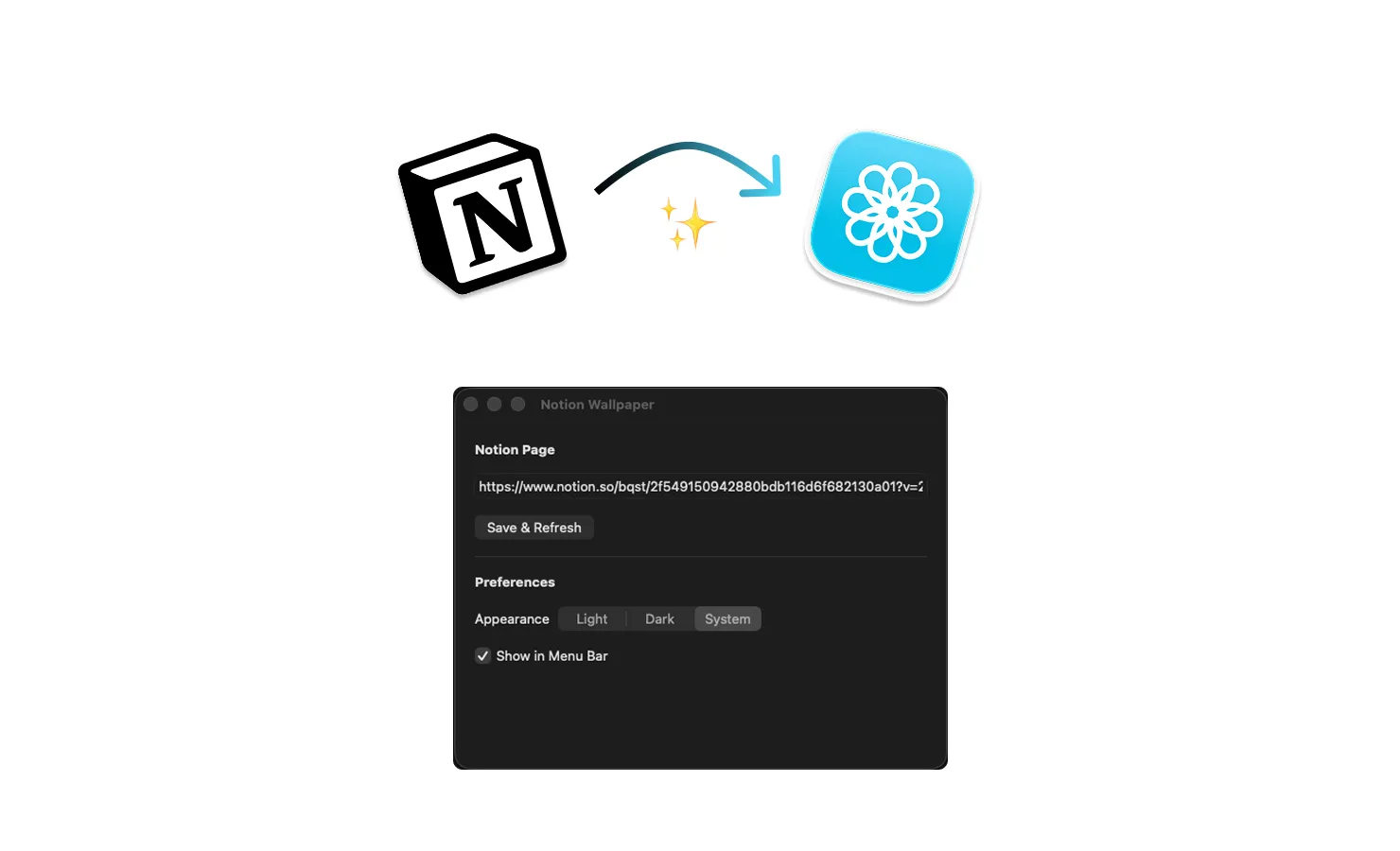
Here’s what it does:
- Syncs with Notion: connect your Notion workspace and select any page you want displayed on your desktop.
- Auto-refresh: the wallpaper updates automatically when you edit your Notion page. Change a shortcut, add a new section, and it shows up on your desktop.
- Clean rendering: the app renders your Notion page as a clean, readable wallpaper that actually looks good on your screen.
- Works with any content: I built it for Vim shortcuts, but it works with anything: meeting notes, project roadmaps, daily goals, API references, whatever you want to keep in sight.
My Setup
Right now, my Notion page is organized by category: navigation, editing, visual mode, buffers, and plugins. Each section lists the shortcuts I use the most, with a short description for each.
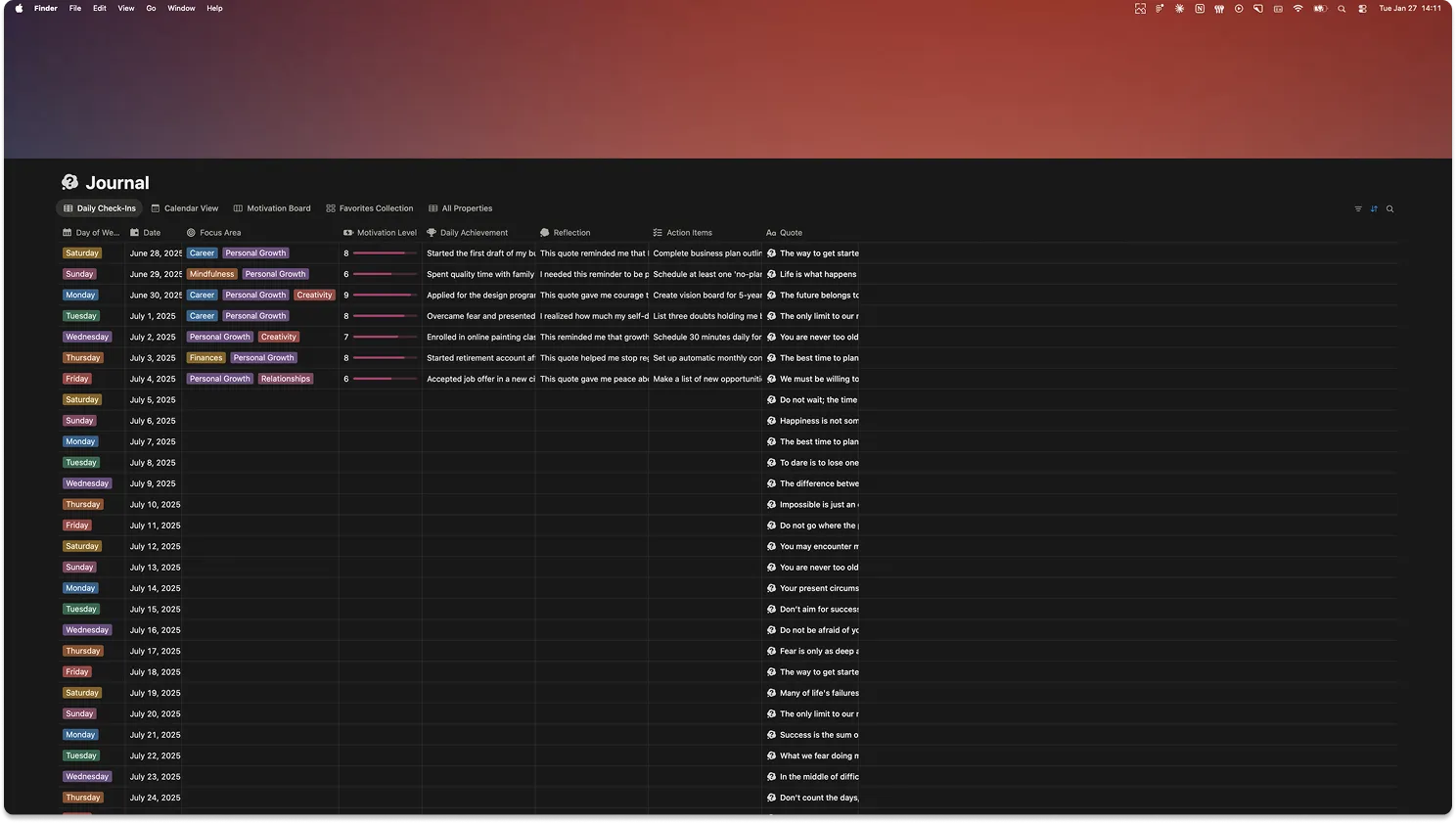
Having this as my wallpaper changed how I learn Vim. Instead of actively searching for a shortcut, I passively absorb them throughout the day. I glance at my desktop between tasks, and over time, the shortcuts just stick. It’s like spaced repetition, but without the effort.
Why Not Just Use a Static Image?
I tried that first. I made a screenshot of my Notion page and set it as wallpaper manually. It worked for about a day, until I wanted to add a new shortcut. Then I had to re-screenshot, re-crop, re-set the wallpaper. Too much friction.
The whole point of using Notion is that it’s easy to update. Notion Wallpaper keeps that benefit intact: edit in Notion, see it on your desktop. No extra steps.
Getting Started
The app is open source and available on GitHub:
github.com/bqst/notion-wallpaper
Setup is straightforward:
- Download and install the app.
- Connect your Notion workspace.
- Select the page you want as your wallpaper.
- Done, your desktop now shows your Notion page.
Wrapping Up
Learning Vim is a long game. There’s no shortcut to learning shortcuts (pun intended). But having them permanently visible on my desktop has genuinely accelerated the process. I’m not switching between apps anymore, and I’m retaining new motions faster than before.
If you’re learning Vim, studying for something, or just want quick access to any reference material, give Notion Wallpaper a try. And if you find it useful, a star on GitHub is always appreciated.